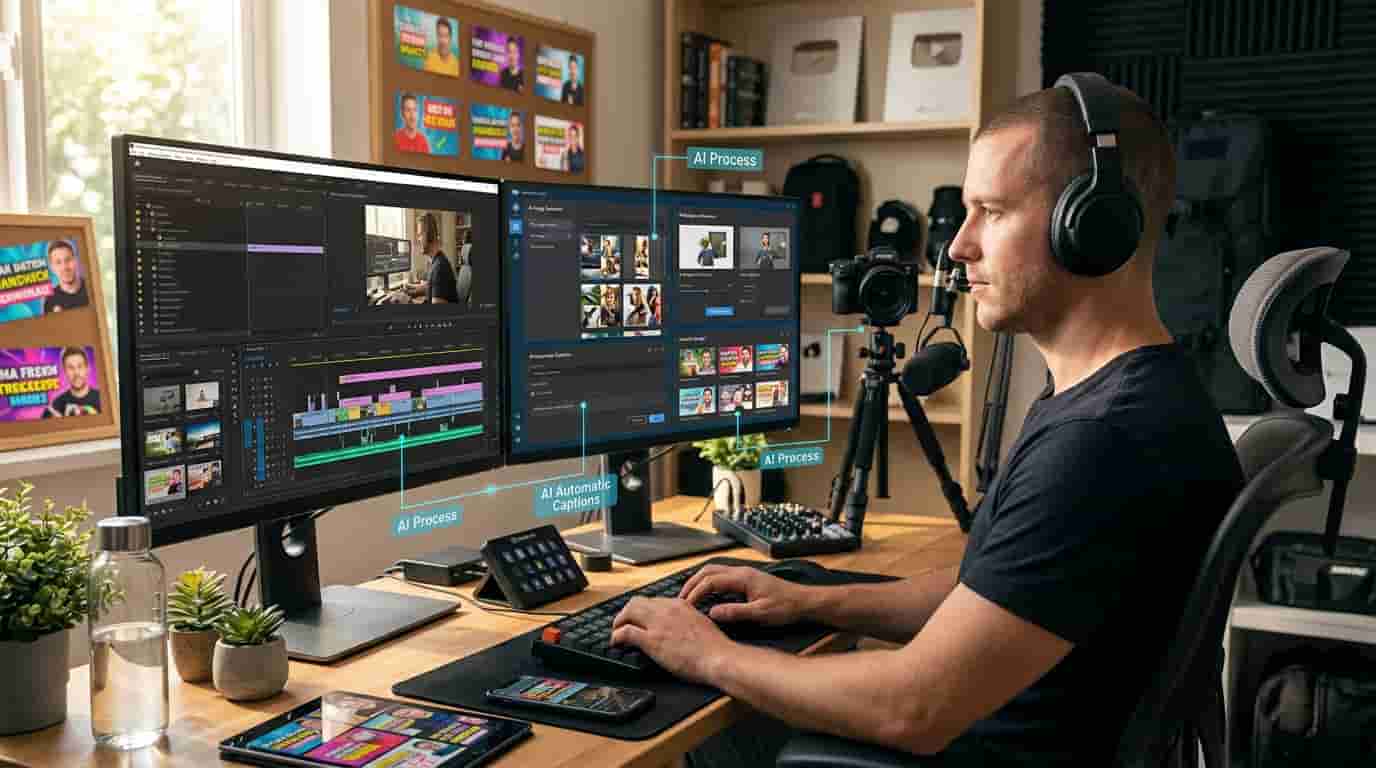
Creating YouTube videos involves much more than recording footage. After filming, creators often spend hours cutting unnecessary scenes, removing background noise, adding subtitles, finding suitable images, designing thumbnails, and preparing videos for publishing. These tasks can become difficult when you upload content regularly or manage a channel on your own.
Artificial intelligence (AI) can make this process faster and more manageable. Instead of completing every editing task manually, YouTubers can use AI-powered tools to automate repetitive work, improve video quality, generate creative visuals, and prepare content for different platforms.
The best approach is to use AI as an editing assistant while keeping your own creativity and judgment in control. Here is how you can build a smarter YouTube editing workflow.
1. Use AI to Create a Video Editing Plan
Before opening your video editor, decide what you want your final video to look like. AI writing assistants can help you turn a rough idea into an organized editing plan.
For example, if you record a 20-minute product review, you can ask an AI assistant to:
-
Identify the most important sections of your video.
-
Suggest an engaging opening.
-
Organize the main points into a logical sequence.
-
Recommend where product photos or demonstrations should appear.
-
Suggest places for transitions, text overlays, and background music.
-
Create a list of short clips that could work as YouTube Shorts.
You can also provide a transcript of your recording and ask AI to identify repeated points, unnecessary sections, and moments that deserve more attention.
Example AI prompt:
"Review this video transcript and create an editing plan for a YouTube video. Identify the introduction, important discussion points, unnecessary repetitions, suitable image placements, and opportunities for short clips. Keep the original meaning and do not invent information."
This preparation can reduce editing decisions later and help you maintain a clear direction throughout the project.
2. Remove Unnecessary Clips and Long Pauses Automatically
One of the most time-consuming parts of editing is removing long pauses, repeated sentences, mistakes, and unnecessary footage. If you edit every section manually, even a short video can take hours to finish.
AI-powered video editors can help identify silent gaps and make repetitive editing tasks easier. Some tools also offer transcript-based editing, allowing creators to work with spoken words instead of searching through the entire video timeline.
For example, Descript offers text-based video editing, transcription, filler-word removal, and audio cleanup features. You can edit a transcript and make corresponding changes to your video.
Another option is Movavi AI Video Editor. Its AI features include automatic subtitles, silence removal, background noise reduction, motion tracking, and background removal. Feature availability can vary by software version and license.
If you want to explore editing software and available offers, visit Movavi Discount Codes & Deals on Rafer Discount to check current savings.
Time-saving tip: Let AI identify possible cuts, but review the final timeline before exporting. Automatic editing may remove a pause that is important for a joke, explanation, reaction, or dramatic moment.
3. Generate Subtitles and Captions with AI
Captions help viewers follow your content, especially when they watch videos without sound or have difficulty understanding spoken words. However, typing every sentence and adjusting its timing manually can take a lot of time.
AI caption tools can listen to your video and automatically convert speech into text. You can then correct mistakes, adjust the timing, and choose a style that matches your channel.
For example, Canva provides an editable captions feature that generates captions from video speech. Creators can review the text, adjust caption timing, customize styles, and download the finished video with captions.
You can learn more through the Canva captions guide.
For better results:
-
Select the correct spoken language before generating captions.
-
Check brand names, product names, and technical terms.
-
Correct punctuation and spelling.
-
Make sure captions do not cover important objects.
-
Keep text readable on mobile screens.
AI transcription is helpful, but it is not always perfect. Always proofread captions before publishing.
4. Add AI-Generated Images to Make Videos More Interesting
A video does not always need to show the creator speaking directly to the camera. Adding relevant images can help explain complex topics, make tutorials easier to follow, and keep visual content varied.
AI image-generation tools allow creators to describe a scene and generate a visual based on that description. You can use these images as supporting visuals, background scenes, illustrations, or creative inserts when they genuinely help explain your topic.
For example:
-
Travel videos: Generate illustrations of destinations, maps, or travel concepts.
-
Technology videos: Create visuals showing devices, digital systems, or technology concepts.
-
Educational videos: Generate diagrams, simple illustrations, and explanatory scenes.
-
Product reviews: Add relevant product photos and close-up visuals.
-
Storytelling videos: Create scene illustrations that support the story.
Tools such as Adobe Firefly can generate images from text prompts and help edit existing visuals. You can describe the subject, background, lighting, camera angle, and visual style to guide the result.
Example AI image prompt:
"Create a realistic 16:9 editorial photograph of a modern home office with a professional content creator recording a YouTube tutorial. Include a camera, microphone, laptop, soft studio lighting, and a clean background. Use natural colors, realistic details, and professional photography. No text, logos, or watermark."
Generate visuals that match your video's subject instead of adding random images just to make the screen look busy.
5. Turn Photos into Creative Visuals with Mimi Panda
Sometimes, a regular photograph does not match the visual style of your video. You may want a creative illustration, an outline drawing, or a different visual treatment to make your content more distinctive.
Mimi Panda offers tools for converting photos into coloring pages, creating paint-by-numbers images, generating AI images, removing photo backgrounds, and enhancing visuals. These features may be useful for art tutorials, drawing channels, educational content, and creative storytelling videos.
For example, a creator making a drawing tutorial can turn a suitable photograph into an outline-style image and show the result as part of the lesson. A craft creator can also use paint-by-numbers visuals to demonstrate a creative project.
Explore Mimi Panda Promo Codes on Rafer Discount to check available offers before choosing a plan.
Important: Check the applicable usage rights before including generated or converted images in monetized videos. Mimi Panda's generated images may have different usage permissions depending on the tool and plan, so review its terms before commercial use.
6. Improve Video Audio Without Spending Hours Editing
Clear audio is just as important as good visuals. Background noise, wind, traffic, keyboard sounds, and other distractions can make a video difficult to watch.
AI audio-cleanup features can help reduce unwanted background noise and make speech clearer. Some video editors also provide tools for adjusting audio levels and separating voice recordings from background music.
Movavi, for example, includes an AI noise-removal feature designed to reduce unwanted sounds in recordings. Descript also offers background-noise removal and audio-enhancement options.
You can improve your audio workflow by:
-
Recording in a quiet environment whenever possible.
-
Keeping the microphone close enough to capture clear speech.
-
Using AI noise reduction to clean up unwanted sounds.
-
Adjusting background music so it does not overpower your voice.
-
Listening to the complete video before publishing.
Remember that AI cannot always repair badly recorded audio. Starting with a clear recording will usually produce better results.
7. Create YouTube Thumbnails and Supporting Graphics Faster
Your thumbnail is one of the first things viewers notice when browsing YouTube. Creating a fresh design for every upload can take additional time, especially if you manage several types of content.
AI image tools and design platforms can help you develop thumbnail concepts, remove backgrounds, generate visual elements, and prepare different design variations.
A practical thumbnail workflow looks like this:
-
Write down the main idea of your video.
-
Choose one clear subject that represents the topic.
-
Generate or select a suitable background image.
-
Add your own photo or product image when relevant.
-
Use a design tool to add a short, readable headline.
-
Check the thumbnail on a small screen before uploading.
You can use Canva to arrange images, add text, and customize thumbnail designs. For AI-generated visual concepts, Adobe Firefly is another option.
Avoid filling thumbnails with too many objects or long sentences. A clear image with a strong visual focus is usually easier to understand.
8. Convert Long Videos into YouTube Shorts and Social Media Clips
If you create long-form YouTube videos, you may already have enough material for several short clips. Instead of editing every short video from the beginning, use AI tools to identify interesting moments from your existing footage.
Some AI-assisted editing tools can help locate highlights, create shorter clips, generate captions, and adapt videos to vertical formats.
For example, you can use a long tutorial to create separate clips covering individual tips. A product review can become short videos about the product's features, benefits, and limitations.
Before publishing, check that each clip:
-
Makes sense without watching the full video.
-
Starts with a clear point or interesting moment.
-
Keeps the main subject visible in vertical format.
-
Includes accurate captions where useful.
-
Directs viewers toward the full video when appropriate.
This approach helps you reuse existing footage and maintain a consistent publishing schedule without recording every piece of content separately.
9. A Simple AI Workflow for Faster YouTube Editing
You do not need to use every AI tool available. A small collection of tools that solves your most common editing problems can be more effective than switching between multiple applications.
Here is a practical workflow you can follow:
| Editing stage | How AI can help |
|---|---|
| Before recording | Prepare scripts, outlines, and shot lists |
| After recording | Transcribe footage and identify possible cuts |
| Video editing | Remove pauses and clean up audio |
| Captions | Generate and format subtitles |
| Visual content | Create images and supporting illustrations |
| Thumbnail design | Generate concepts and arrange graphics |
| Repurposing | Find highlights and prepare short clips |
| Final review | Check captions, audio, visuals, and timing |
Start with the tasks that take you the most time. For one creator, that might be subtitles; for another, it could be removing pauses or creating thumbnails.
10. Important Things to Check Before Publishing AI-Assisted Videos
AI can speed up production, but creators remain responsible for the content they publish. Generated images can contain incorrect details, captions can misunderstand spoken words, and automated editing can remove important context.
Keep these points in mind:
-
Review AI-generated content: Check facts, images, captions, and edits before publishing.
-
Respect image rights: Use your own photos, properly licensed stock images, or AI-generated visuals with suitable usage rights.
-
Check music licenses: Do not assume that every AI-generated or downloaded music track is automatically safe to use.
-
Protect privacy: Avoid uploading confidential recordings or personal information to tools without understanding their privacy policies.
-
Follow YouTube rules: Review YouTube's policies on copyright and disclosure of altered or synthetic content when applicable.
-
Keep your own style: Use AI to support your creative decisions rather than making every video look identical.
You can review the official YouTube guidance on altered or synthetic content to understand when disclosure may be required.
Final Thoughts
AI is making video production more accessible for YouTubers who want to create quality content without spending all their time on repetitive editing tasks. From automatic subtitles and silence removal to AI-generated images, background cleanup, and thumbnail design, these tools can simplify different stages of the production process.
Movavi can help with practical video-editing tasks, while creative platforms such as Adobe Firefly and Mimi Panda offer additional ways to produce supporting visuals. The right combination depends on your channel's content and editing needs.
Start with one or two tools, test their results, and build a workflow that saves time without sacrificing quality. The goal is not to let AI make every creative decision. It is to spend less time on repetitive work and more time creating videos your audience wants to watch.
Frequently Asked Questions
1. How can YouTubers use AI to edit videos faster?
YouTubers can use AI to generate subtitles, remove long pauses, clean background noise, identify video highlights, and prepare short clips. These features reduce repetitive editing work while allowing creators to review and refine the final video.
2. Can AI automatically add subtitles to YouTube videos?
Yes. AI caption tools can convert spoken words into subtitles and place them on a video timeline. Creators should review the generated text and correct any mistakes before publishing.
3. Which AI tools can help with YouTube video editing?
Tools such as Movavi, Descript, and Adobe Premiere offer different AI-assisted editing features. The best option depends on whether you need automatic captions, silence removal, audio cleanup, transcript-based editing, or generative media.
4. Can I use AI to generate photos for YouTube videos?
Yes. AI image generators can create illustrations, backgrounds, and supporting visuals from text prompts. Always check the tool's usage rights and make sure the images accurately represent your video topic.
5. How can I create YouTube thumbnails with AI?
You can use AI to generate a background or visual concept, then arrange the image, headline, and other elements in a design tool such as Canva. Review the final thumbnail at a small size to make sure it is clear and readable.
6. Can AI turn long YouTube videos into Shorts?
Some AI-assisted editing tools can identify highlights and help create shorter clips from long recordings. You should review each clip to ensure it has enough context and works properly in a vertical format.
7. Is Mimi Panda useful for YouTube creators?
Mimi Panda can help creative and educational creators convert photos into coloring pages, create paint-by-numbers visuals, generate AI images, and edit photos. It may be particularly useful for drawing, craft, and art-related channels. Check its usage terms before using images commercially.
8. Does AI replace professional video editors?
No. AI can automate repetitive tasks and assist with editing, but storytelling, pacing, creative direction, and final quality control still require human judgment.
9. Can beginners use AI video editing software?
Yes. Many AI-assisted editors are designed to make common tasks easier for beginners. Start with basic features such as automatic captions, silence removal, and noise reduction before exploring more advanced tools.
10. How can I save money on AI video editing tools?
Compare features and subscription plans before purchasing software. You can also check current offers and discounts on Rafer Discount, including available deals for Movavi and Mimi Panda.